


LinkedIn account records
Prepare accurate account details before requesting a licence.
Add the person receiving the licence
Open LinkedIn accounts (Comptes LinkedIn). Use the account holder’s real name, LinkedIn profile URL, email and phone number. These details identify the intended account and the recipient of activation instructions.
Creating or editing this record does not purchase a licence, launch a campaign, connect a Sendler seat or sign in to LinkedIn. Seatly does not ask for your LinkedIn password, login cookies or 2FA codes. What the support team can see.
Before assigning a licence
- Check the selected workspace and available credit balance.
- Verify the LinkedIn URL belongs to the intended person.
- Confirm the email and phone are accurate and accessible.
- Look at the activation history to avoid duplicate requests.
What is on the detail page?
You can review account information, schedule a renewal reminder and open Account activity. Its tabs separate Notifications from Activation history. Click a notification row to inspect the recorded content and status; use View activation to open the linked request.
Why can’t I assign another licence?
A request may already be in progress, an active licence may occupy the account, or the minimum interval after a confirmed activation may not have elapsed. Hover over the disabled Assign a licence button for the reason. The same safeguard applies when choosing an account in the global activation dialog.
Follow the LinkedIn activation process · Set a reminder
In the application
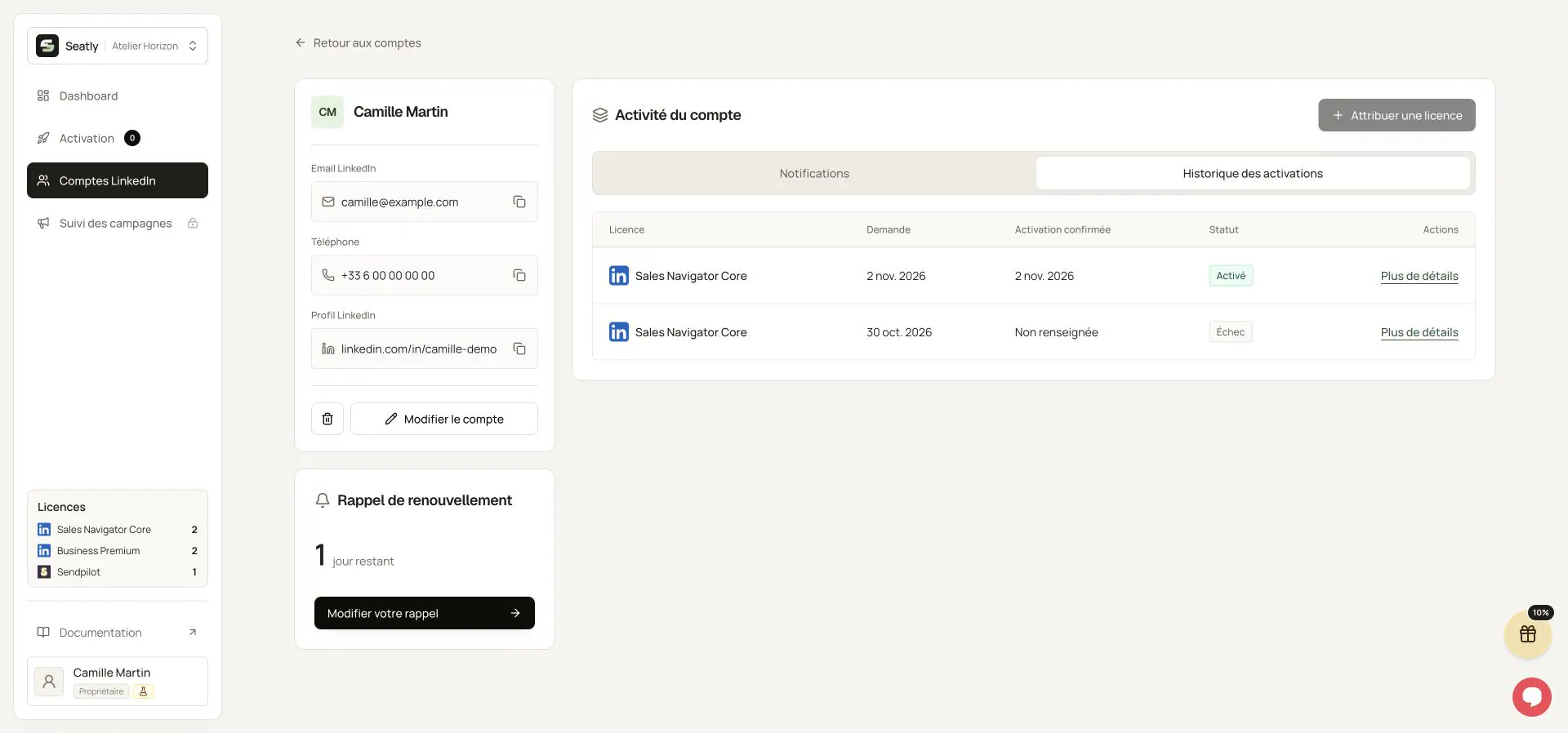
Account details with renewal reminder and activation history. Names, workspace and contact details have been replaced with fictional examples. This illustration is not a quote or a customer record. The interface shown is in French.